


Salesforce holds your customer data. Your ERP holds orders and invoices. Your ecommerce platform holds transactions. When none of them talk to each other, your team becomes the integration layer, retyping records between systems and reconciling mismatches at month-end. A Salesforce Dell Boomi integration turns that manual relay into a managed sync.
This Dell Boomi Salesforce integration guide shows you how to connect Salesforce to the rest of your stack using Boomi’s AtomSphere platform. Folio3’s Salesforce integration consultant can also scope your specific use cases.
You’ll get the setup sequence, the integration patterns that fit different workloads, real use cases, and the errors that catch first-time builders.
Summary
- What standalone Salesforce actually costs in rework and stale data
- How Dell Boomi Salesforce integration uses low-code tools and pre-built connectors
- Four integration patterns and when each fits: real-time, batch, event-driven, API-led
- An 8-step setup walkthrough from environment access to go-live monitoring
- Five use cases: lead management, Customer 360, order-to-cash, ecommerce, and migration
- Common failure points (API limits, external IDs, error handling) and how to avoid them
Why You Need Dell Boomi Salesforce Integration
The Real Cost of Standalone Salesforce
A disconnected Salesforce org generates hidden labor. Sales ops re-keys closed-won orders into the ERP, finance reconciles invoices manually, and agents ask customers for order numbers that already exist elsewhere.
For a 50-person sales org, duplicate entry alone commonly eats 10 to 15 hours weekly, and the errors surface later as billing disputes. Stale data costs more: reps quote customers on credit hold and forecast revenue finance already booked differently. If this resonates, a Salesforce consulting partner can help design your integration roadmap.
How Integration Transforms Your CRM
Connected, Salesforce becomes the front end for your whole stack. Reps see NetSuite order history, shipment status, and support tickets without leaving the Account page, and closed-won opportunities create ERP orders automatically instead of waiting in someone’s queue.
Our ERP integration with Salesforce guide covers this transformation in detail.
Understanding Dell Boomi Salesforce Integration
What Makes Boomi Different?
Boomi (formerly Dell Boomi, now an independent company) is a cloud-native integration platform, an iPaaS, built around a visual process designer. You build integrations by dragging connectors and mapping fields rather than writing code. For a Dell Boomi integration with Salesforce, that visual builder is what keeps most CRM-to-ERP flows readable after go-live. Its runtime engine, the Atom, can run in Boomi’s cloud or on your own servers when data must stay behind the firewall.
Two things distinguish Dell Boomi Salesforce integration work. Boomi Suggest recommends field mappings based on patterns from millions of prior integrations, which cuts mapping time on standard objects noticeably. And the Salesforce connector supports both the REST/SOAP APIs and the Bulk API, so the same platform handles a real-time lead sync and a 2-million-record migration.
Key Boomi Capabilities
The Salesforce connector handles standard and custom objects, upserts via external IDs, and platform event subscriptions. Beyond connectivity, Boomi provides transformation maps, decision logic, error routing, and process scheduling. Master Data Hub (a separate module) adds golden-record management if you need one source of truth across systems.
Dell Boomi Salesforce Integration Patterns Explained
Different workloads need different patterns. Picking the wrong one is the most common design mistake.
Real-Time Synchronization
Record changes trigger immediate sync, typically within seconds. Use it for data where staleness hurts: lead assignments, case escalations, credit status. The tradeoff is API consumption; every change costs calls against Salesforce’s daily limit.
Batch Processing
Scheduled jobs move records in bulk, hourly or nightly. This suits high-volume, low-urgency data like order history or product catalogs. A nightly batch of 100,000 records through the Bulk API might consume a handful of batch jobs instead of 100,000 individual calls.
Event-Driven Integration
Salesforce platform events or outbound messages push changes to Boomi as they happen, without polling. This pattern scales better than polling-based real-time sync and is the right default for closed-won automation.
API-Led Architecture
Boomi exposes reusable APIs that multiple systems consume, rather than building point-to-point processes for each pair. Worth the extra design effort once you’re connecting four or more systems, because point-to-point sprawl becomes unmaintainable around that count.
| Pattern | Latency | Best For | Watch Out For |
|---|---|---|---|
| Real-time | Seconds | Leads, cases, credit holds | API limit burn |
| Batch | Hours | Catalogs, order history | Stale data windows |
| Event-driven | Seconds | Closed-won triggers | Event allocation limits |
| API-led | Varies | 4+ connected systems | Higher upfront design cost |
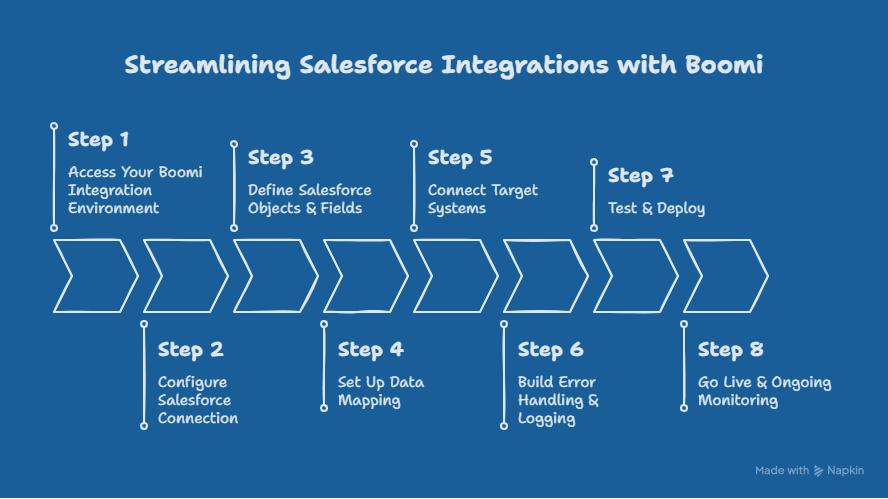
Dell Boomi Salesforce Integration Guide: 8-Step Setup
With patterns covered, here is the build sequence for a Salesforce Dell Boomi integration. Reversing steps (especially mapping before object definition) causes rework.
Step 1: Access Your Boomi Integration Environment
Log into the AtomSphere platform and provision an Atom. Cloud Atoms suit most Salesforce work; install a local Atom only if you’re connecting on-premise systems behind a firewall.
Step 2: Configure Salesforce Connection
Configure Salesforce Connection Create a dedicated integration user in Salesforce with a permission set scoped to only the objects you’ll touch. Authenticate via OAuth 2.0 rather than username-password; it survives password rotations—this aligns with Salesforce authentication best practices. Point the connection at a full sandbox first, never production.
Step 3: Define Salesforce Objects and Fields
Import the objects your process needs. Boomi reads your org’s metadata, including custom fields, so import after your Salesforce data model is final. Importing early means re-importing after every schema change.
Step 4: Set Up Data Mapping
Set Up Data Mapping Map source fields to Salesforce targets in the mapping shape. Handle the unglamorous cases now: date format conversions, picklist value mismatches, and null handling. Use external ID fields for upserts so reruns don’t create duplicates—a pattern detailed in NetSuite and Salesforce integration guides.
Step 5: Connect Target Systems
Add connectors for the other side of the flow: NetSuite, SAP, Shopify, a database. Boomi ships 200+ pre-built connectors, and most standard SaaS systems configure in under an hour.
Step 6: Build Error Handling and Logging
Build Error Handling and Logging Add try/catch shapes, route failures to a retry queue or alert email, and log record IDs on every failure. Integrations without error handling fail silently, and you find out from an angry sales manager three weeks later. Proper logging is part of how you optimize Salesforce org stability.
Step 7: Test and Deploy
Test with production-scale volumes in sandbox; ten records won’t reveal API limit problems, 50,000 will. Verify duplicate safety by running the same job twice.
Step 8: Go Live and Ongoing Monitoring
Deploy to production during low-traffic hours, monitor the first full cycle end to end, and set up process reporting dashboards. Review error trends weekly for the first month. Salesforce managed services provider can take over this continuous monitoring and optimization phase.
Real-World Dell Boomi Salesforce Integration Use Cases
Lead Management
Lead Management Marketing platforms (Marketo, HubSpot) push leads to Salesforce in real time with deduplication against existing contacts. Response time drops from hours to minutes, which matters because lead conversion decays fast after the first five minutes. See Salesforce lead management for automation setup details.
Customer 360 Integration
Boomi aggregates ERP billing data, support tickets, and product usage into the Salesforce Account page. Reps stop asking customers questions the company already knows the answers to.
Order-to-Cash Workflow
Order-to-Cash Workflow Closed-won opportunities create ERP sales orders automatically, and fulfillment status syncs back to Salesforce. Companies moving from manual order entry typically cut order processing from 1 to 2 days to under an hour and eliminate the transcription errors that cause billing disputes. This pattern mirrors use cases in Salesforce Revenue Cloud integrations.
E-Commerce Integration
Shopify or Magento orders, customers, and refunds sync to Salesforce for a complete purchase history. Pair this with Commerce Cloud development if Salesforce is also your storefront.
Data Migration
Boomi’s Bulk API support handles one-time migrations from legacy CRMs. A 2-million-record migration that would choke the standard API runs in batched jobs with built-in retry. Salesforce data migration at scale requires careful planning, Folio3 often pairs Boomi migration work with post-migration cleansing.
Dell Boomi Salesforce Integration Connectors and When to Use Them
Pre-built connectors cover authentication, pagination, and API quirks so you don’t rebuild them. Use them whenever one exists for your system; they’re maintained against vendor API changes.
Build a custom connector (via Boomi’s HTTP client or connector SDK) only for proprietary or niche systems. One caveat: connector field coverage occasionally lags new Salesforce releases by a cycle, so check that recently added objects are supported before committing a design to them.
Common Challenges in Dell Boomi Salesforce Integration and Solutions
API Limits and Governor Constraints
API Limits and Governor Constraints Salesforce Enterprise Edition includes 15,000 daily API calls plus per-user additions. A chatty real-time integration can exhaust that by mid-afternoon. Fix: batch where latency allows, use the Bulk API for volume, and monitor consumption in Salesforce’s API usage report. API considerations are factored into Salesforce implementation cost planning.
External ID and Duplicate Problems
Inserts without external IDs create duplicates on every rerun. Define an external ID field on each synced object and use upsert operations everywhere.
Field Mapping Drift
Salesforce admins add fields; integrations silently ignore them. Schedule a quarterly mapping review against your data dictionary.
Error Visibility
Failures buried in process logs go unnoticed. Route every failure to an alerting channel with the record ID attached.
Dell Boomi Salesforce Integration Guide Best Practices
- For Dell Boomi integration with Salesforce, start with one process, not five; get lead sync stable before touching order-to-cash.
- Use a dedicated integration user so audit logs distinguish system changes from human ones.
- Keep transformations in Boomi rather than splitting logic between Boomi maps and Salesforce triggers, because split logic is undebuggable at 2 a.m.
- Document every mapping decision. And load-test at production scale before go-live, since API limit failures only appear under volume.
Why Businesses Choose Dell Boomi Salesforce Integration Over Manual Work
Manual integration means CSV exports, spreadsheet cleanup, and imports: it scales with headcount and breaks whenever a column moves.
Custom code avoids the labor but concentrates knowledge in whoever wrote it.
Boomi sits between: faster than custom code (days versus weeks for standard flows), readable by any admin, and vendor-maintained against API changes.
The subscription cost pays off once you maintain two or more ongoing integrations.
Success Stories: How Companies Use Dell Boomi Integration With Salesforce
A wholesale distributor Folio3, worked with ran order entry manually: closed-won opportunities were re-keyed into SAP by two coordinators, averaging 90 orders daily with a 3% error rate.
This Salesforce Dell Boomi integration used an event-driven Boomi flow (platform event on closed-won, transformation map, SAP IDoc creation), took the error rate under 0.5%, and freed both coordinators for exception handling. Build time was five weeks including testing.
The pattern repeats across industries: the value isn’t exotic, it’s removing re-keying and the reconciliation work that follows it.
Teams without in-house middleware skills typically engage Salesforce integration services for the initial build and take over maintenance afterward.
Key Takeaways
- Match the integration pattern to the workload; real-time everywhere burns API limits for no benefit
- Use external IDs and upserts from day one to make every job safely rerunnable
- Build error handling and alerting before go-live, not after the first silent failure
- Test at production volume; small test sets hide the failures that matter
- Start with one high-value flow, stabilize it, then expand
Conclusion
Standalone Salesforce pushes integration work onto your people, and this Dell Boomi Salesforce integration guide has covered the way out: pick the right pattern for each workload, follow the 8-step build sequence, and design for errors and API limits before they find you. The result is a CRM that reflects reality across your stack instead of one version of it.
If you’d rather skip the trial-and-error phase, book a call with Folio3’s integration team to scope your first Boomi flow.
FAQs
What Is a Dell Boomi Salesforce Integration Guide Used For?
A Dell Boomi Salesforce Integration Guide helps teams decide when Boomi is the right middleware for Salesforce-to-ERP, ecommerce, support, or data migration work. Salesforce’s native tools (Flow, platform events, MuleSoft) work well within the Salesforce ecosystem, but Flow cannot orchestrate complex multi-system logic and MuleSoft carries higher licensing and skill costs. Boomi is platform-neutral middleware with 200+ connectors and a low-code designer, which suits teams connecting Salesforce to many systems without dedicated developers.
Can I Integrate Multiple Systems at Once Using Boomi With Salesforce?
Yes. A single Boomi process can read from Salesforce and write to several targets, or you can build an API-led architecture where reusable APIs serve multiple consumers. Multi-system designs work best when built incrementally: stabilize one flow, then add systems, rather than launching a five-system integration simultaneously.
How Long Does a Boomi Salesforce Integration Typically Take?
A standard two-system flow, such as lead sync or closed-won order creation, takes 2 to 5 weeks including mapping, error handling, and volume testing. Multi-system or API-led projects run 8 to 16 weeks. Data migrations vary with volume and cleanup needs; a 2-million-record migration with deduplication typically takes 4 to 6 weeks.
Does Boomi Support Real-Time Data Sync With Salesforce?
Yes, through two mechanisms. Salesforce platform events and outbound messages push changes to Boomi within seconds without polling. Boomi can also poll on short intervals, though polling consumes API calls continuously. Event-driven sync is the better default for real-time needs because it scales without burning through Salesforce’s daily API allocation.